
The Figma MCP server is Figma’s connection between your design files and AI tools such as Claude, Claude Code and Cursor. It sends the tool the components, variables and layout of the frame you choose. With the remote server, the tool can also write to your file. MCP means Model Context Protocol, an open standard for these connections.
I use Claude, Claude Code, Cursor, Figma AI and ChatGPT. I connect tools with connectors and MCPs, and I give each tool the context of the job. This site is built with Claude Code. Where each tool fits in a designer’s week is in AI tools for product designers.
This article explains the Figma MCP server for designers: what it does, how to connect it, what it costs and what to check. Figma changes the server often. The facts below come from Figma’s documentation in November 2026.
What is the Figma MCP server?
The Figma MCP server is a program from Figma that AI tools connect to, so they can read and change your Figma files. It uses MCP, the Model Context Protocol. Anthropic published MCP as an open standard in November 2024. Its documentation compares MCP to a USB-C port: one kind of connection for many tools.
An AI tool that only sees a screenshot guesses what is on the screen. Through the server, it reads what the design is made of. Figma lists these jobs, among others.
| What the server does | What you get |
|---|---|
| Extract design context | The components, variables and layout of a frame, sent to your AI tool |
| Generate code from a frame | A starting point for code that follows the design |
| Write to the canvas | Frames, components and variables created in your Figma file, in beta |
| Send UI to Figma | A page of a live app or site, captured as layers you can edit |
| Code Connect | Links from Figma components to the real components in your code |
Code Connect needs a Full or Dev seat on a Professional, Organization, Government or Enterprise plan. Figma’s guide for designers says that with it, the AI tool uses your real components instead of a generic guess.
Remote or desktop: which Figma MCP server to use
Use the remote server. Figma recommends it for most people, and only the remote server writes to the canvas.
- Hosted by Figma, no desktop app needed
- Works on every plan, with limits
- Reads and writes Figma files
- Recommended by Figma for most people
- Runs inside the Figma desktop app
- Needs a Dev or Full seat, on any plan except Starter
- Does not write to the canvas
- Meant for specific needs of large organizations
The remote server is the one this article describes. You sign in with your Figma account the first time you connect, and the tool sees only the files you can already open.
How to connect the Figma MCP server to Claude Code
Install the Figma plugin for Claude Code. The plugin holds the server settings and Figma’s skills. A skill is a written set of steps that tells the AI tool which Figma tools to use, and in what order.
- In a terminal, run
claude plugin install figma@claude-plugins-official. - Restart Claude Code and type
/plugin. - In the Installed tab, select the figma server and press Enter twice.
- In the browser page that opens, click Allow access.
If the command fails, your organization may block plugins. Figma’s advice is to contact your Claude administrator.
How to connect the Figma MCP server to Cursor and the Claude app
In Cursor, install the Figma plugin from the chat. In the Claude app, add Figma as a connector. Neither needs code.
Cursor. Open the chat, enter /add-plugin figma, click Submit, then Add Plugin. Open Cursor Settings and select Tools & MCP. Click Connect next to Figma, then Allow access.
The Claude app. Open Customize, then Connectors, add Figma and sign in with your Figma account. Figma’s guide for designers gives this as the first step. A connector links Claude to an outside app, here to Figma’s remote server. On Team and Enterprise plans, an Owner adds the connector for the organization, and then each person connects with their own account.
Only the AI tools listed in Figma’s MCP catalog can connect. Claude, Claude Code, Cursor, ChatGPT and VS Code are on it.
How to use the Figma MCP server in your design work
Point the tool at one frame with a link, ask for one result, and check it. The work is the same in every tool.
- Prepare the frame Clear layer names, variables and auto layout. The tool reads what is in the file.
- Copy a link Right-click the frame in Figma and choose Copy link to selection.
- Ask for one result Paste the link into your prompt. Name the components or variables to use.
- Check the result Compare it with the design. Fix it, or ask again with more context.
Keep the selection small. Figma’s FAQ says that when a request hangs or returns incomplete results, the selection is usually too large.
The tool knows your conventions only if you share them, through Code Connect, variables, rules or your prompt. Figma’s guide for designers says a well-structured token system lets AI use your real brand values instead of generic defaults. I explain tokens in what are design tokens. Some public design systems, such as IBM’s Carbon, also publish their own MCP server, as I show in design system examples.
To write in a file, the tool uses the remote server. Figma says writing is in beta: test it on a copy of your library or on a draft file, and keep a backup.
My view is that AI becomes the basic tool of design, as Figma replaced Illustrator. Designers will give the direction, and will not draw every corner, padding and grid. The server gives the tool your design system. It does not give it your judgment.
Is the Figma MCP server free?
The Figma MCP server works on every plan, with limits. The number of tool calls depends on your plan and your seat. A tool call is one request from the AI tool to Figma, for example to read one frame.
| Seat | Starter | Professional | Organization | Enterprise |
|---|---|---|---|---|
| View or Collab | 20 a month | 20 a month | 20 a month | 20 a month |
| Full or Dev | 20 a month for the plan | 200 a day | 200 a day | 600 a day |
The limits count the calls that read from Figma. Calls that write to a file are not counted. Paid plans also have a limit per minute, and Figma says it may change the limits at any time.
Writing to the canvas needs a Professional, Education, Organization or Enterprise plan and edit access to the file. You need a Full seat to write outside your drafts. Writing is free during the beta, and Figma says it will become a paid feature, billed by use.
What to check before you trust the result
Check three things: who allowed the connection, what the tool may do, and what it made.
Ask first. In a company, the choice of tools is often not yours alone. Connect only servers from companies you trust, as Anthropic’s help page advises.
Approve each action. The MCP specification says the AI app must get your explicit consent before it uses a tool. Cursor asks for approval by default. Read what the tool will do before you approve it.
Review the result. Figma says the server is not a one-click way to turn designs into finished code. It also says that content written to the canvas is beta quality and may need review and cleanup.
I check every answer an AI tool gives me. AI makes mistakes, gives the average and has biases, so the human eye stays the critic. A 2026 survey shows that few designers trust AI output without a check.
| Answer | Percentage of respondents |
|---|---|
| First drafts, edited heavily | 34.2% |
| Exploration only | 29.2% |
| Review before shipping | 24.7% |
| Ships with minor changes | 8.1% |
| Do not use AI output | 2.4% |
| Full trust, no oversight | 1.4% |
Source: UX Tools, State of Prototyping, Spring 2026. (opens in a new tab)
Anyone could choose to answer the survey, and UX Tools ran it with sponsors. Only 1.4% trust AI output with no oversight. A connection to Figma gives the tool better input. It does not remove the review.
How to start this week
Start with one small frame and one AI tool that your company allows.
- Ask your design system team or your IT team if the Figma MCP server is allowed, and through which AI tool.
- Install the Figma plugin in that tool, or add Figma under Customize, then Connectors, in the Claude app.
- Choose one small frame that uses your components and variables. Ask the tool to describe it, then to build it.
- Compare the result with the design, and note what the tool got wrong.
- Fix the file where the tool was confused, for example layer names or variables. Then try again.
Infographic
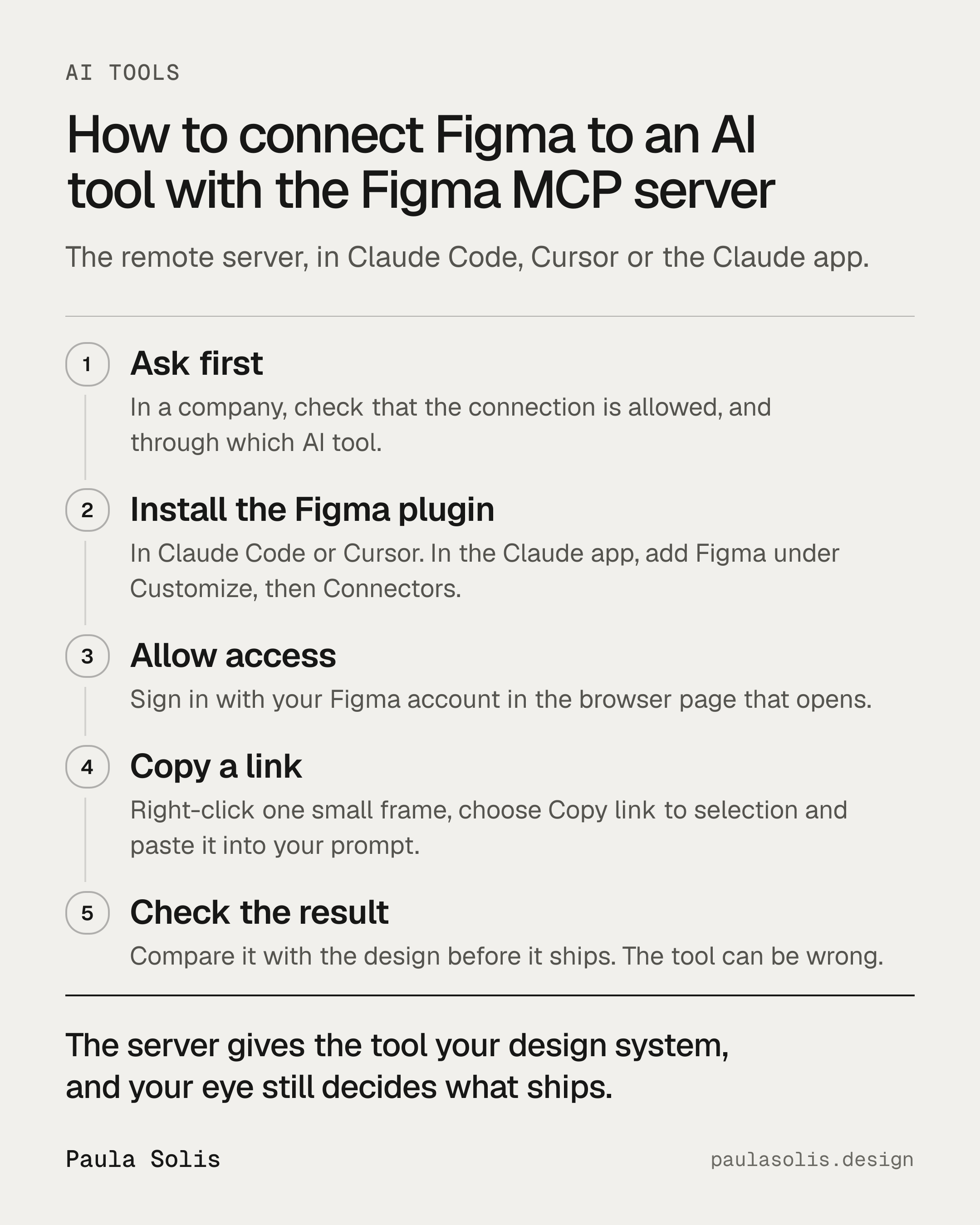
How to connect Figma to an AI tool with the Figma MCP server. The remote server, in Claude Code, Cursor or the Claude app. 1. Ask first: In a company, check that the connection is allowed, and through which AI tool. 2. Install the Figma plugin: In Claude Code or Cursor. In the Claude app, add Figma under Customize, then Connectors. 3. Allow access: Sign in with your Figma account in the browser page that opens. 4. Copy a link: Right-click one small frame, choose Copy link to selection and paste it into your prompt. 5. Check the result: Compare it with the design before it ships. The tool can be wrong. The server gives the tool your design system, and your eye still decides what ships.
Questions and answers
What is the Figma MCP server?
The Figma MCP server is Figma's connection to AI tools that use the Model Context Protocol (MCP). It gives tools such as Claude Code and Cursor the components, variables and layout of a Figma frame, so the code they write follows the real design. The remote Figma MCP server can also write to Figma files.
Is the Figma MCP server free?
The Figma MCP server works on every Figma plan, with limits. A Starter plan, or a View or Collab seat, gets up to 20 tool calls a month. Full and Dev seats on paid plans get 200 to 600 a day. Writing to files is free during the beta and will become a paid feature.
Can Claude connect to Figma?
Yes. In the Claude app, open Customize, then Connectors, add Figma and sign in with your Figma account. In Claude Code, install Figma's plugin with one command in the terminal, then allow access. On Claude Team and Enterprise plans, an Owner adds the Figma connector for the organization first.
How do I use the Figma MCP server with Cursor?
To use the Figma MCP server with Cursor, open the chat in Cursor and enter /add-plugin figma. Then open Cursor Settings, choose Tools & MCP and click Connect next to Figma. Allow access in the browser. To work on a design, copy a link to a frame in Figma and paste it into your prompt.
Do designers need to code to use the Figma MCP server?
No. In the Claude app, a designer connects Figma from a menu and signs in. Claude Code needs one command in a terminal. Figma says the more useful skill is a well-structured design system, with clear names, variables and auto layout. The designer still checks every result the AI tool gives.
Sources (16)
- Guide to the Figma MCP server (opens in a new tab). Figma, 2026.
- Get started with the Figma MCP server (opens in a new tab). Figma, 2026.
- Figma MCP server FAQs (opens in a new tab). Figma, 2026.
- Set up the remote server (recommended) (opens in a new tab). Figma Developer Docs, 2026.
- Rate limits & access (opens in a new tab). Figma Developer Docs, 2026.
- Write to canvas (opens in a new tab). Figma Developer Docs, 2026.
- Figma MCP Catalog (opens in a new tab). Figma, 2026.
- MCP for designers: What it is and how to use it (opens in a new tab). Figma, 2026.
- Code Connect (opens in a new tab). Figma, 2026.
- What is the Model Context Protocol (MCP)? (opens in a new tab). Model Context Protocol, 2026.
- Specification, version 2026-07-28 (opens in a new tab). Model Context Protocol, 2026.
- Introducing the Model Context Protocol (opens in a new tab). Anthropic, 2024.
- Get started with connectors (opens in a new tab). Claude.ai Documentation, 2026.
- Get started with custom connectors using remote MCP (opens in a new tab). Claude Help Center, 2026.
- Model Context Protocol (MCP) (opens in a new tab). Cursor Docs, 2026.
- State of Prototyping: Spring 2026 (opens in a new tab). UX Tools, 2026.